How to Set Up a Hardware Wallet (Ledger or Trezor), Step by Step
A hardware wallet is a small dedicated device that keeps your private keys offline and signs transactions on its own screen. Because the keys never touch your internet-connected computer or phone, malware on those machines cannot quietly steal them or rewrite where your money goes. Setting one up is not difficult, but a few steps genuinely matter for safety, and getting them right the first time is far easier than fixing a mistake later.
This guide walks through the whole process for the two most common examples, Ledger and Trezor, from opening the box to receiving a first test amount. The steps are similar on both, so where they differ the difference is noted. This is educational material, not a recommendation to buy any particular brand; treat both as equally valid starting points and choose based on your own needs.
What a hardware wallet does, and why
The job of a hardware wallet is narrow and important. It generates and stores your private keys on the device itself, and when you want to send funds it signs the transaction inside the device rather than on your computer. Your computer or phone builds an unsigned transaction, hands it to the device, the device shows you the details on its own little screen, and only after you physically confirm does it return a signed transaction. The secret key never leaves the device.
This design defends against a real threat: software that has compromised your computer. Such malware can alter what you see in a browser or app, including swapping a destination address for the attacker's own. Because a hardware wallet shows the true amount and address on a screen the malware cannot touch, you get a trustworthy second view before anything is signed. That is the core reason these devices exist. To go deeper on the trade-offs, see are hardware wallets worth it.
Choosing a device and a price range
You do not need an expensive model to be secure. As of 2026, entry-level devices are quite affordable: the Trezor Safe 3 is listed around 59 USD and the Ledger Nano S Plus around 50 USD. Premium touchscreen models such as the Trezor Safe 5 (around 129 USD) and higher-end Ledger models cost more, mainly for a nicer screen rather than fundamentally better key protection. Prices vary over time, so confirm current figures on the official site.
A practical way to think about it: a small amount you spend often can live in a free software wallet, while long-term savings belong on the hardware wallet. This split keeps day-to-day convenience without exposing your larger balance. For the broader picture of keeping savings offline, see bitcoin cold storage, and for the general idea of holding your own keys, see how to set up a self-custody wallet.
Before you start: buy safely
Where you buy matters as much as how you set up. The safe rule is simple: buy only from the official website or an authorized seller. Do not buy a hardware wallet used, and do not buy it from a third-party marketplace listing or a random reseller, even if the price looks better. A device that has passed through unknown hands could have been tampered with.
There is one test that catches most tampering. A genuine new device is uninitialized: it must generate a brand-new recovery phrase in front of you during setup. If your device arrives already set up, or comes with a recovery phrase already printed on a card in the box, that is a scam. Stop, do not move any funds to it, and contact the manufacturer. A real device never hands you a ready-made phrase; you always create it yourself on the device.
Step-by-step setup
The following sequence works for both Ledger and Trezor. Read it through once before you begin so nothing surprises you mid-way. Have the supplied recovery card and a pen ready, and set aside about twenty undisturbed minutes.
- Buy from an official source and inspect the package. Confirm the device is new and uninitialized when you power it on.
- Install the official companion app on your computer or phone. For Ledger this is Ledger Live (or the Ledger app); for Trezor it is Trezor Suite. Download it only from the official site, never from a search advertisement or a link someone sent you.
- Connect the device and choose to set up as a new device. The app will check the firmware is genuine. Follow the on-screen prompts to begin a fresh setup rather than a restore.
- Set a PIN on the device. A PIN is typically 4 to 8 digits. Choose something you can remember but others cannot guess, and never store it next to the device. Entering the wrong PIN several times in a row wipes the device, after which it can be restored from the recovery phrase.
- Generate and write down the recovery phrase. The device displays the words one by one on its own screen. Write them by hand on the supplied card, in the exact order, and double-check the spelling. Do not photograph the words, type them into any app, or enter them on any website.
- Confirm the phrase on the device. The setup will ask you to verify the words, usually by selecting them back in order on the device screen. This proves your written copy is correct. Do this carefully; it is your only safety net.
- Install coin apps or add accounts. In Ledger Live you install an app for each coin you hold; in Trezor Suite you add accounts. This tells the device which assets to manage.
- Receive a small test amount and verify the address. Generate a receiving address in the app, then confirm that the address shown on the device's own screen matches before you send anything to it. Move a small test amount first, confirm it arrives, and only then move larger funds.
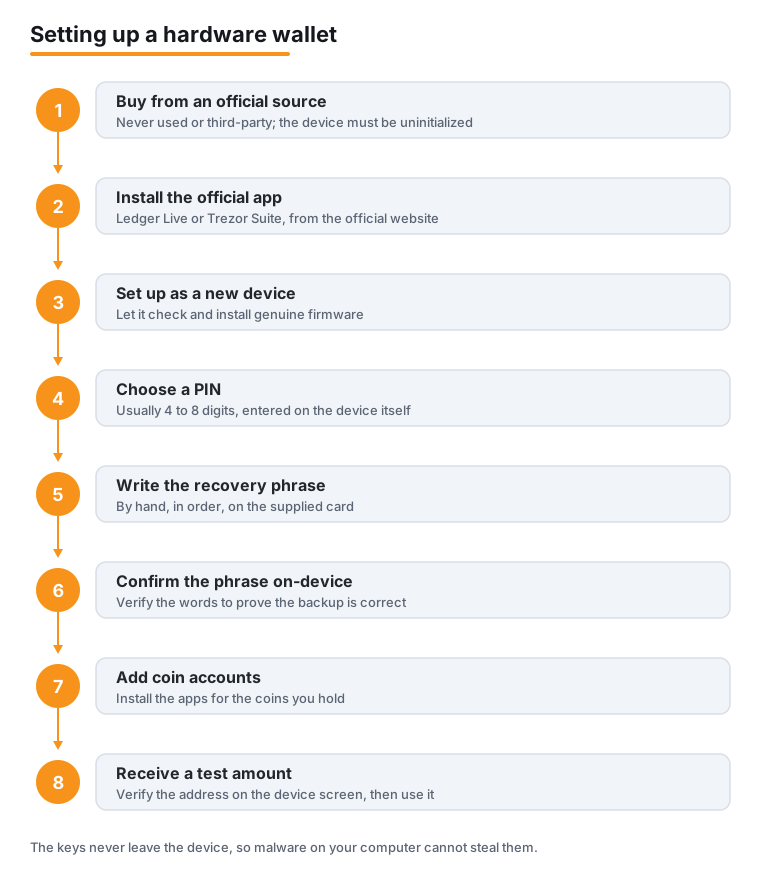
That is the entire core procedure. Notice that the two most security-critical moments, recording the recovery phrase and verifying the receive address, both depend on the device's own screen rather than your computer. That is by design.
The recovery phrase is everything
Your recovery phrase (also called a seed phrase or backup phrase) is the master backup for your wallet. It encodes every key the device will ever use, which means anyone who has the phrase can take all of the funds, with or without the physical device. The device is replaceable; the phrase is not. Treat it as the single most valuable thing to protect.
The rules follow directly from that fact. Write the phrase on paper or, better for meaningful amounts, on metal, and keep it offline. Never photograph it, type it into a computer or phone, or enter it on any website. A genuine device shows the phrase only on its own screen, and only during setup or restore; it will never appear in an email, a pop-up, or a support chat. No legitimate service and no real wallet maker will ever ask you for it, so any such request is a scam. For a fuller treatment, see how to back up your seed phrase, and for what happens if a phrase goes missing, see lost seed phrase recovery.
Word counts and Shamir backup
The number of words depends on the device. Ledger devices use a 24-word recovery phrase. Trezor follows the BIP-39 standard and uses 12, 20, or 24 words depending on the model. More words is not a meaningful difference in everyday safety; what matters is recording whatever your device generates accurately and keeping it offline.
Several Trezor models also support Shamir backup, sometimes called multi-share backup. Instead of one phrase, it splits the backup into multiple shares and sets a threshold, for example any 2 of 3, that is needed to restore. The benefit is that no single piece of paper can be lost catastrophically or stolen to drain your funds: you could lose one share and still recover, while a thief who finds one share gets nothing. The cost is more pieces to manage. You can read the official explanations from Trezor Knowledge Base and on Shamir specifically from Trezor.
Verifying addresses and using the device
Once set up, two habits keep you safe day to day. When you receive funds, confirm that the receiving address shown in the app exactly matches the one on the device screen before you share it. When you send funds, read the amount and destination address on the device screen and only then press confirm. The connected computer can be wrong or compromised; the device's display is the one you trust.
This is also why control of the keys matters. With a hardware wallet you, and only you, can authorize a transaction, because signing happens inside the device behind your PIN. No company can freeze, lose, or move your funds. That independence is the point, and it places responsibility for the recovery phrase squarely on you. If you ever need brand-specific setup help, the official guides are good first stops: Ledger Support and the related Ledger Support article.
Keep firmware updated and stay private
Manufacturers release firmware updates to fix issues and add support for new coins. Keep your device firmware up to date, and install updates only through the official companion app, Ledger Live or Trezor Suite, never from a link or a third party. The app verifies that an update is genuine before applying it, which is part of why you should always go through it.
Finally, keep your setup private. Do not advertise how much you hold or which wallet you use, and be skeptical of anyone offering help in a chat, a direct message, or a phone call. Real support will never ask for your recovery phrase or for remote access. A hardware wallet, set up from an official device and paired with a carefully protected recovery phrase, gives you strong, self-managed control over your funds, and the remaining risk is almost entirely about steady, sensible habits.
Frequently asked questions
Are Ledger and Trezor the only options?
No. They are the two most common examples and are widely reviewed, which is why this guide uses them, but other reputable hardware wallets exist. The setup steps in this guide apply broadly: buy from an official source, confirm the device is uninitialized, install the official companion app, set a PIN, record the recovery phrase by hand, verify it on the device, and confirm addresses on the device screen. Choose based on your own needs rather than brand loyalty.
What if my new device already shows a recovery phrase?
That is a serious warning sign and almost certainly a scam. A genuine new device is uninitialized and must generate a brand-new recovery phrase in front of you during setup. If a device arrives already set up, or comes with a phrase pre-printed on a card, do not move any funds to it. Set it aside and contact the manufacturer through their official website. You should always be the one who creates the phrase, on the device.
How many digits should my PIN be?
A PIN on these devices is typically 4 to 8 digits. Choose one you can remember reliably but that others could not easily guess, and never store it alongside the device or the recovery phrase. Keep in mind that entering the wrong PIN several times in a row wipes the device as a defense against theft. If that happens, you can restore everything from your recovery phrase, which is one more reason that phrase must be recorded and protected carefully.
Is it safe to type my recovery phrase into the companion app to back it up?
Never. The recovery phrase should only ever appear on the device's own screen, and only during setup or a genuine restore. Do not photograph it, type it into a computer or phone, or enter it on any website or app. No legitimate service and no real wallet maker will ever ask for it, so any request, pop-up, or support chat asking for your phrase is an attempt to steal your funds. Keep the phrase written on paper or metal and kept offline.
What is Shamir backup, and do I need it?
Shamir backup, supported on several Trezor models, splits your backup into multiple shares and sets a threshold, for example any 2 of 3, that is needed to restore. It means losing one share does not lock you out, and a thief who finds one share cannot drain your funds. The trade-off is more pieces to store and manage. It is useful for larger holdings or for people who want that extra resilience, but a single well-protected recovery phrase is perfectly adequate for most beginners.
Should I keep all my crypto on the hardware wallet?
A sensible split is to keep small spending amounts in a free software (hot) wallet and your long-term savings on the hardware wallet. The hot wallet handles everyday convenience, like cash in a pocket, while the hardware wallet protects the bulk of your funds offline, like money in a vault. The larger the amount and the longer you plan to hold it, the more it belongs on the hardware wallet rather than on an everyday device or an exchange.
Last updated: 2026-06.
Related guides
- How to Stake Crypto: A Step-by-Step Beginner's Guide
- How to Swap One Crypto for Another Safely
- How to Accept Crypto Payments as a Business
- How to Choose the Right Network When Sending Crypto (ERC-20 vs TRC-20 vs BEP-20)
- Getting Paid in Crypto: How Stablecoin Salaries Actually Work
- How to Set Up a Self-Custody Wallet
- Crypto Scams and Fraud: How to Stay Safe